
1
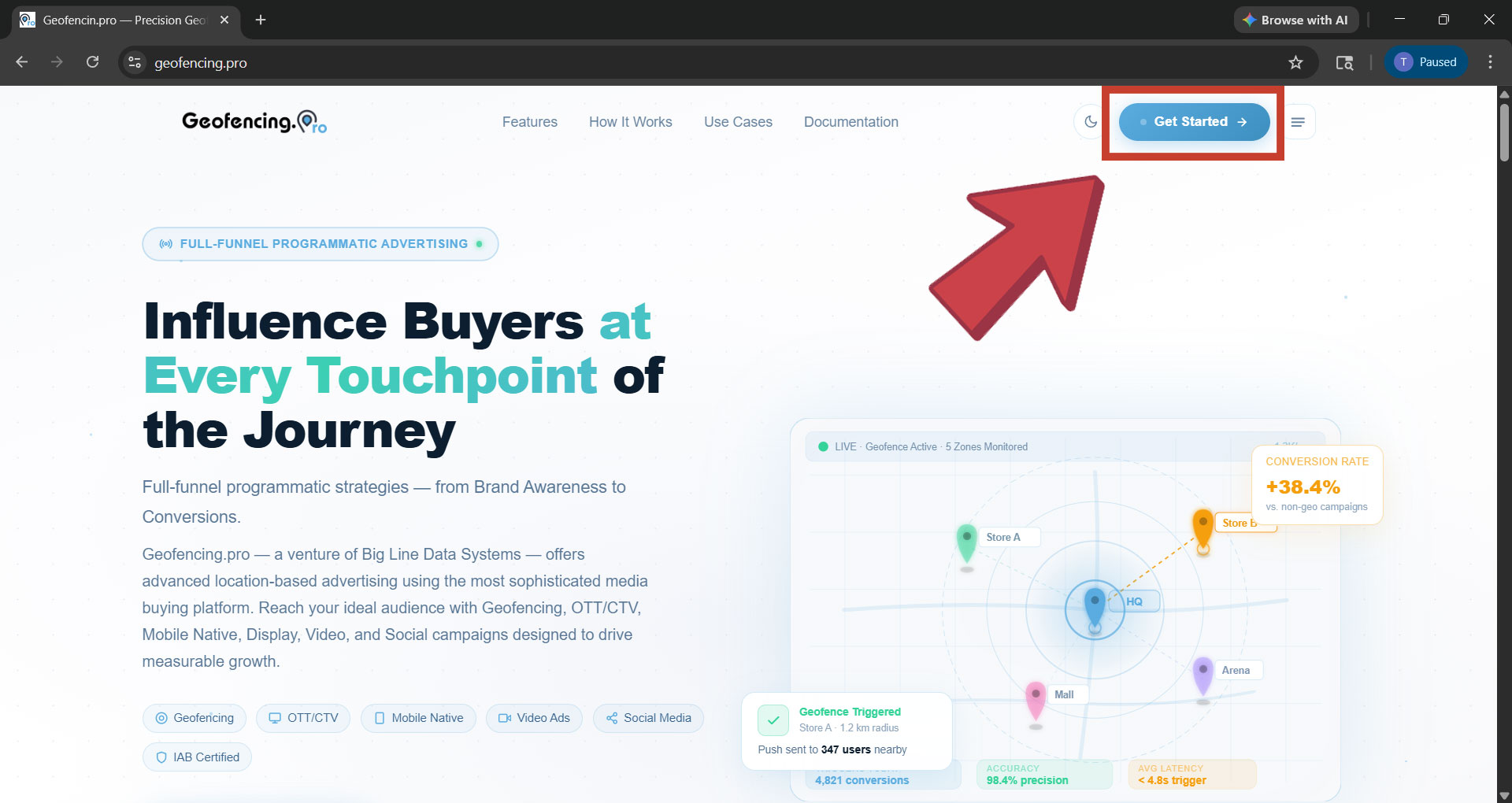
Go to the login screen
Visit geofencing.pro and click “Get Started”, or go directly to dashboard.geofencing.pro. You will land on the login screen.
2
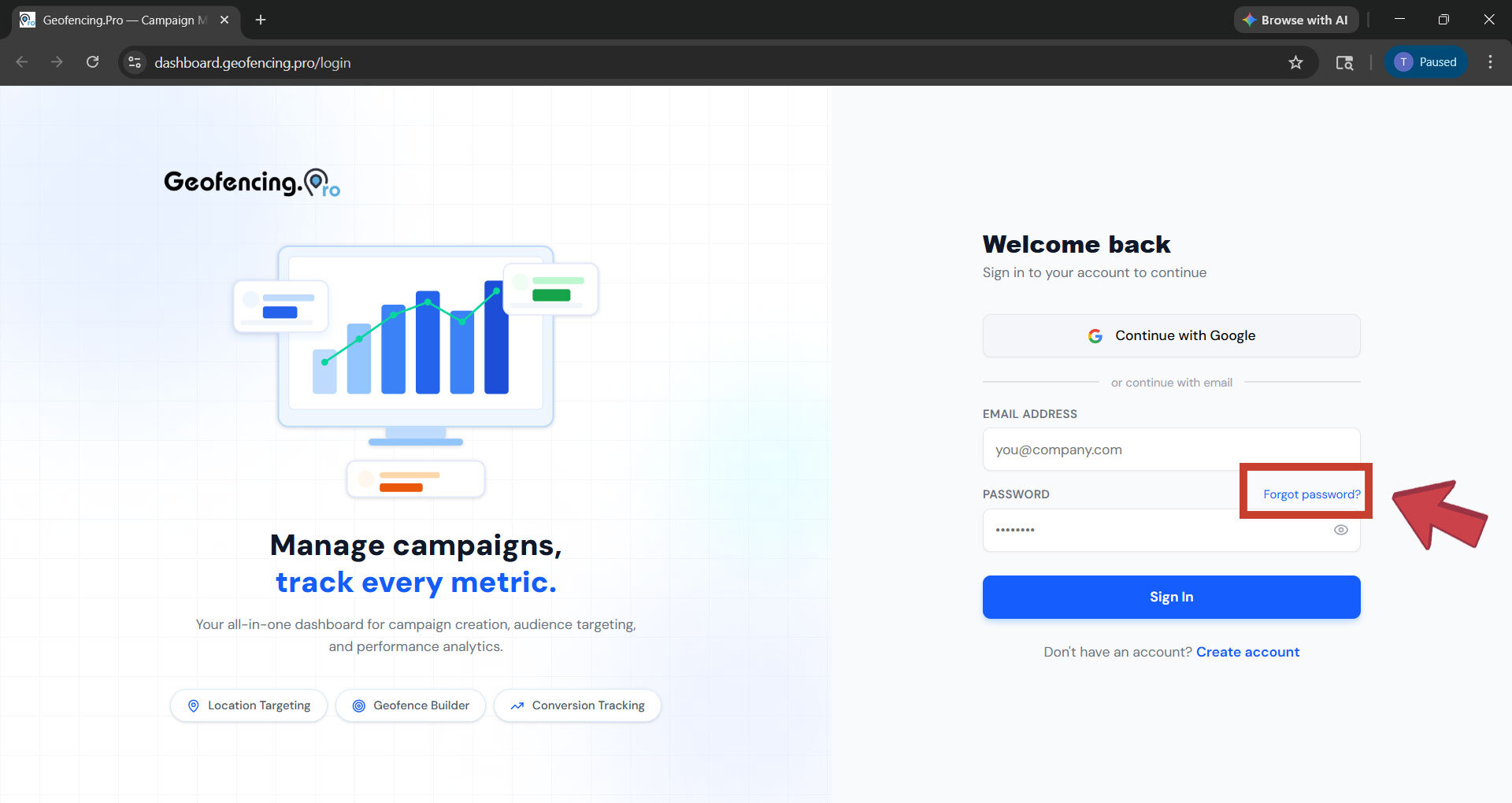
Click 'Forgot Password'
On the login screen, click the “Forgot Password” link. You will be taken to the password reset page.
3
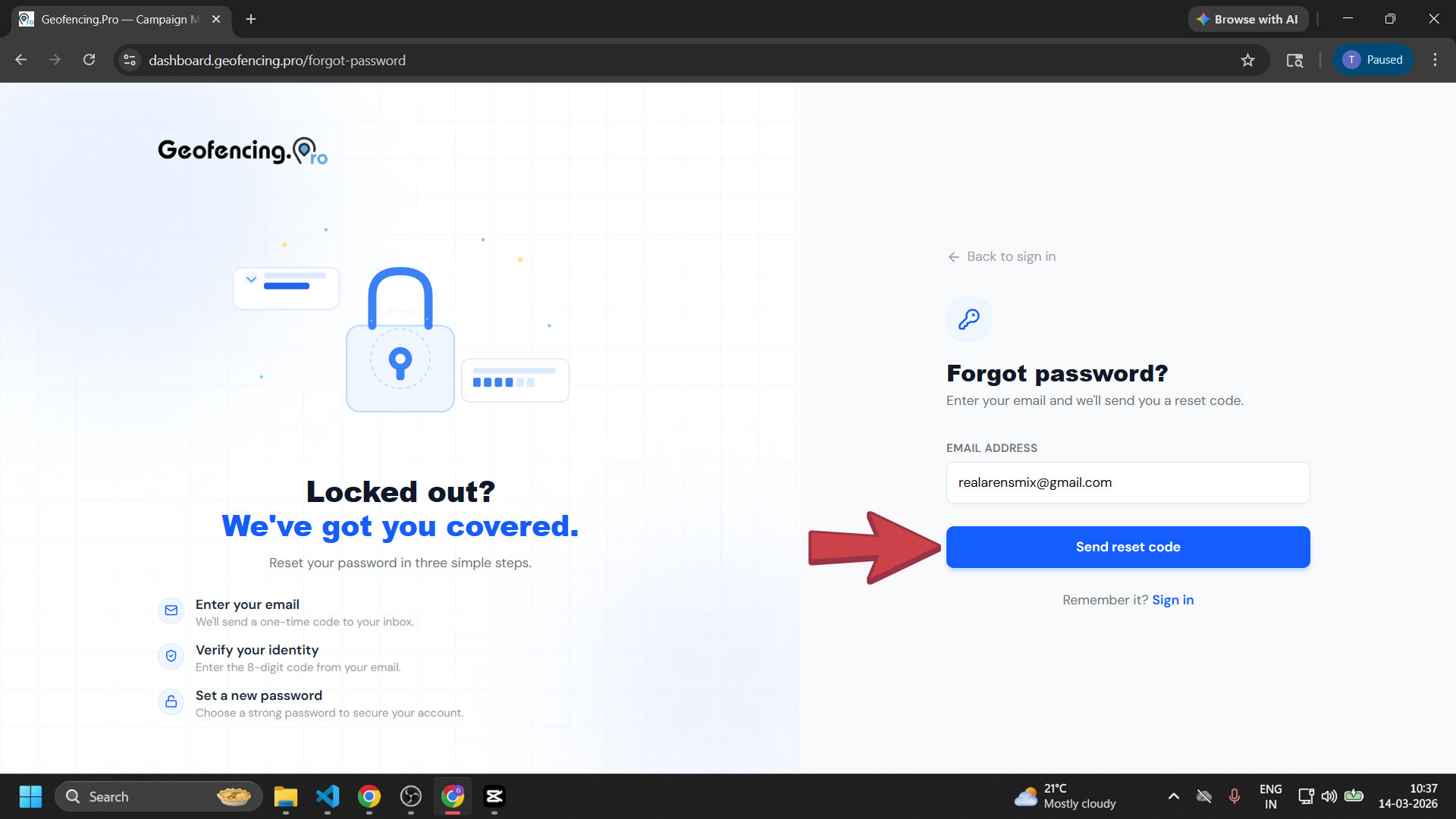
Enter your email address
Type in the email address associated with your Geofencing.pro account and submit the form. We will send an 8-digit verification code to that email.
4
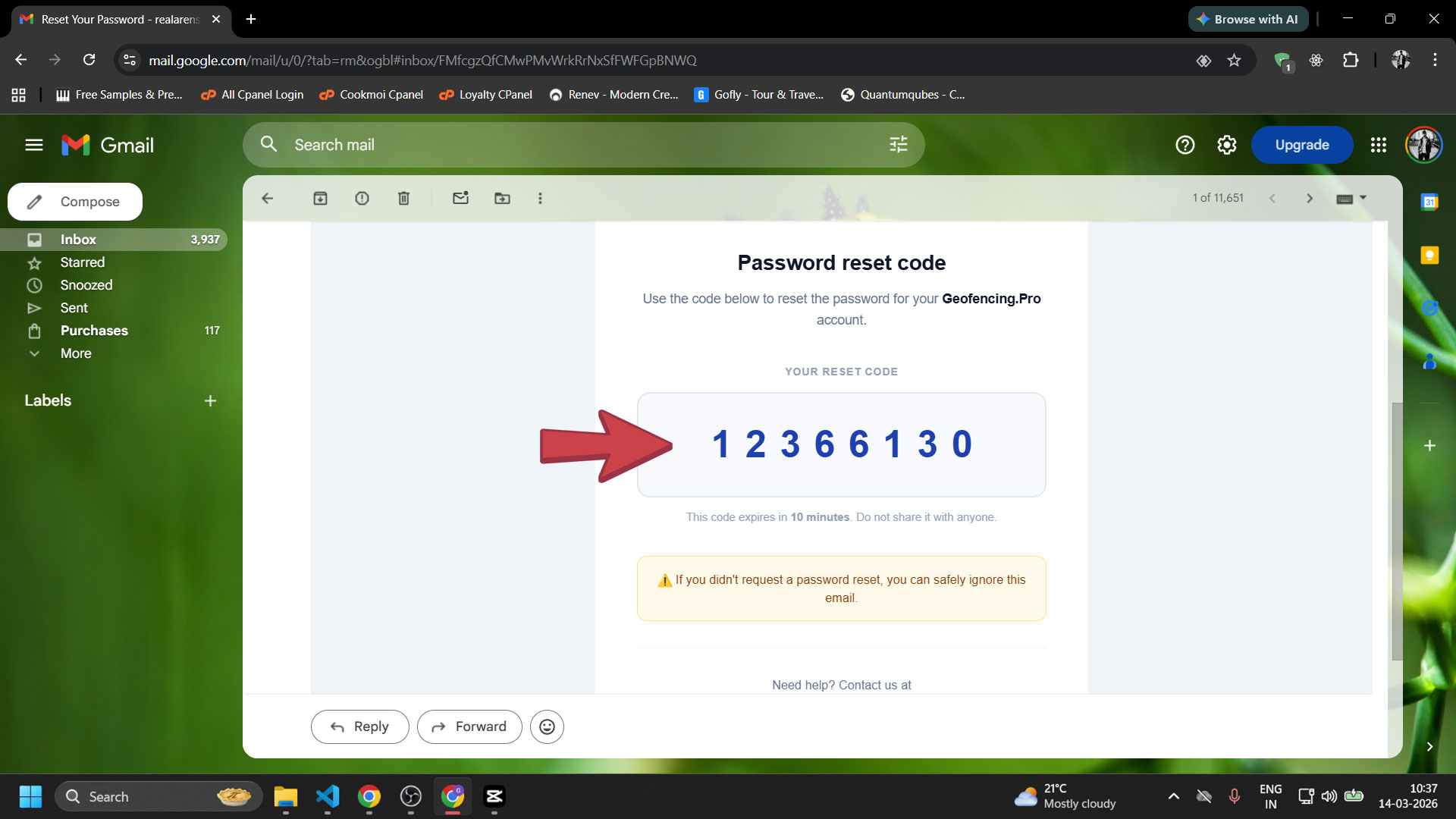
Copy the verification code from your email
Open the email from Geofencing.pro and copy the 8-digit verification code included in the message.
💡Note: Check your spam or junk folder if the email doesn't arrive within a few minutes.
5
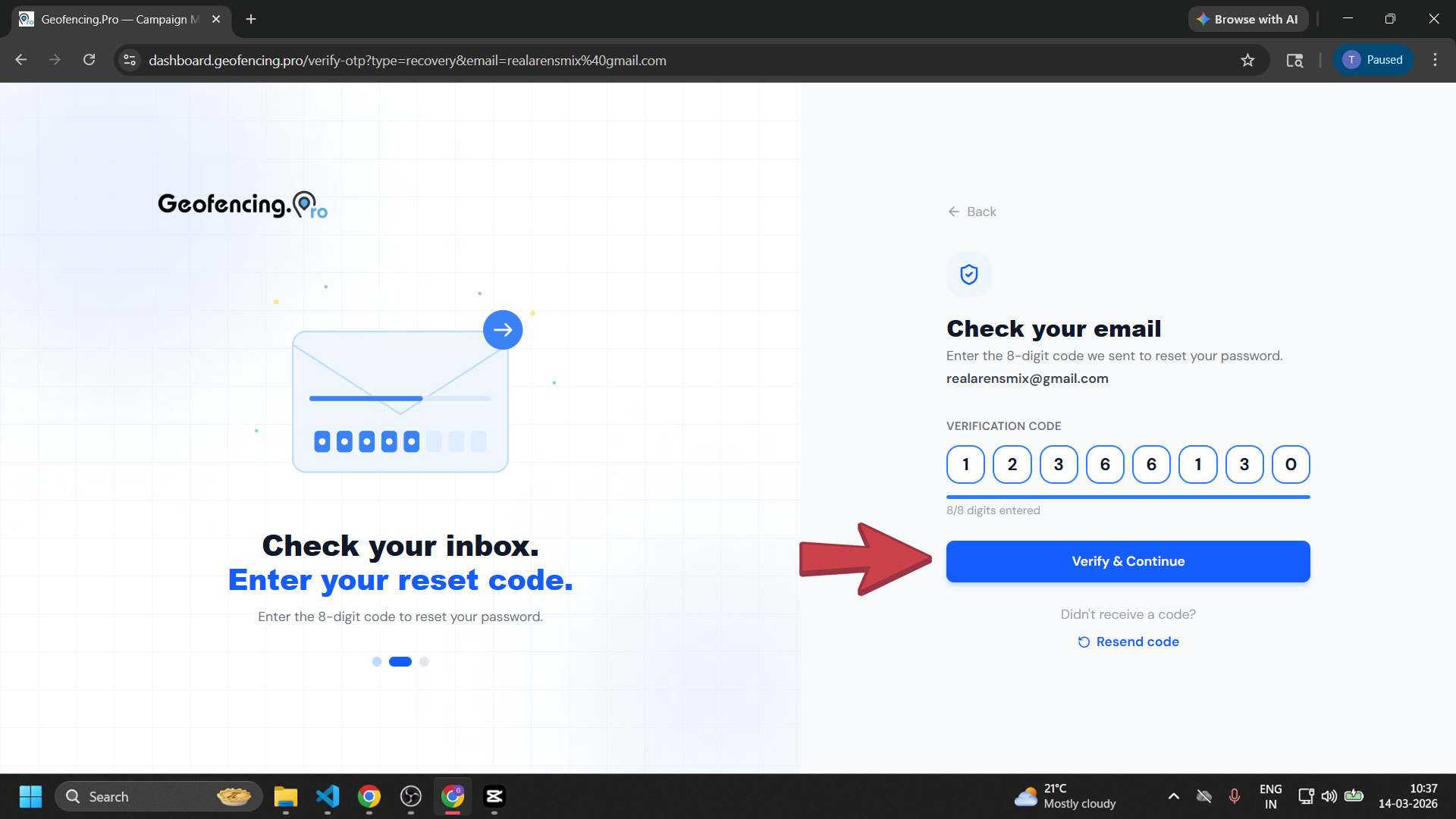
Paste the code on the website
Go back to the Geofencing.pro reset page and paste the code into the verification field, then submit.
6
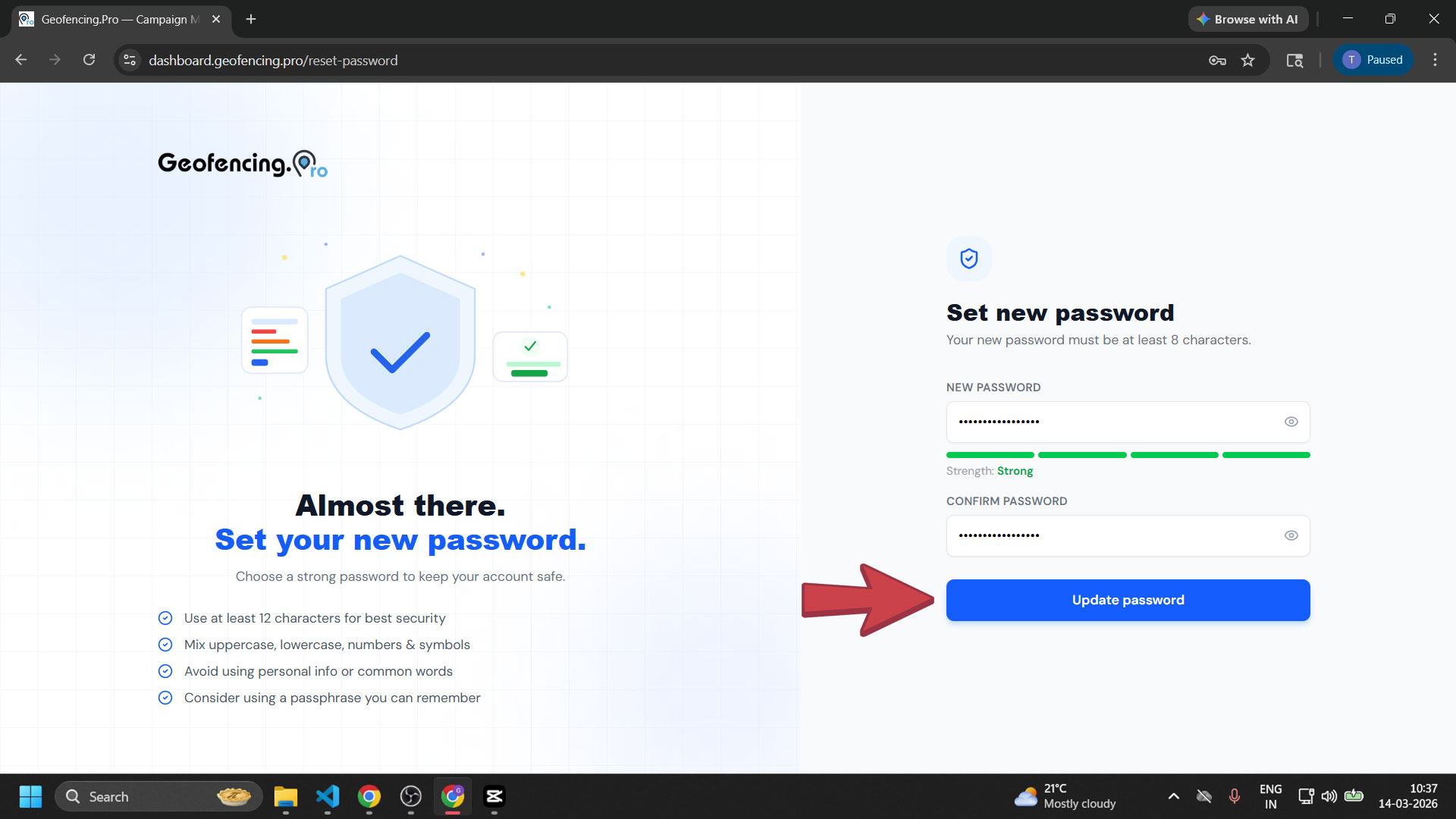
Set and confirm your new password
Enter your new password in the first field, then re-enter it in Confirm New Password. Click “Reset Password” to save.
7
You are now signed in to your dashboard
Your password has been reset and you will be automatically redirected to your dashboard. You can now manage your campaigns, audiences, and billing.
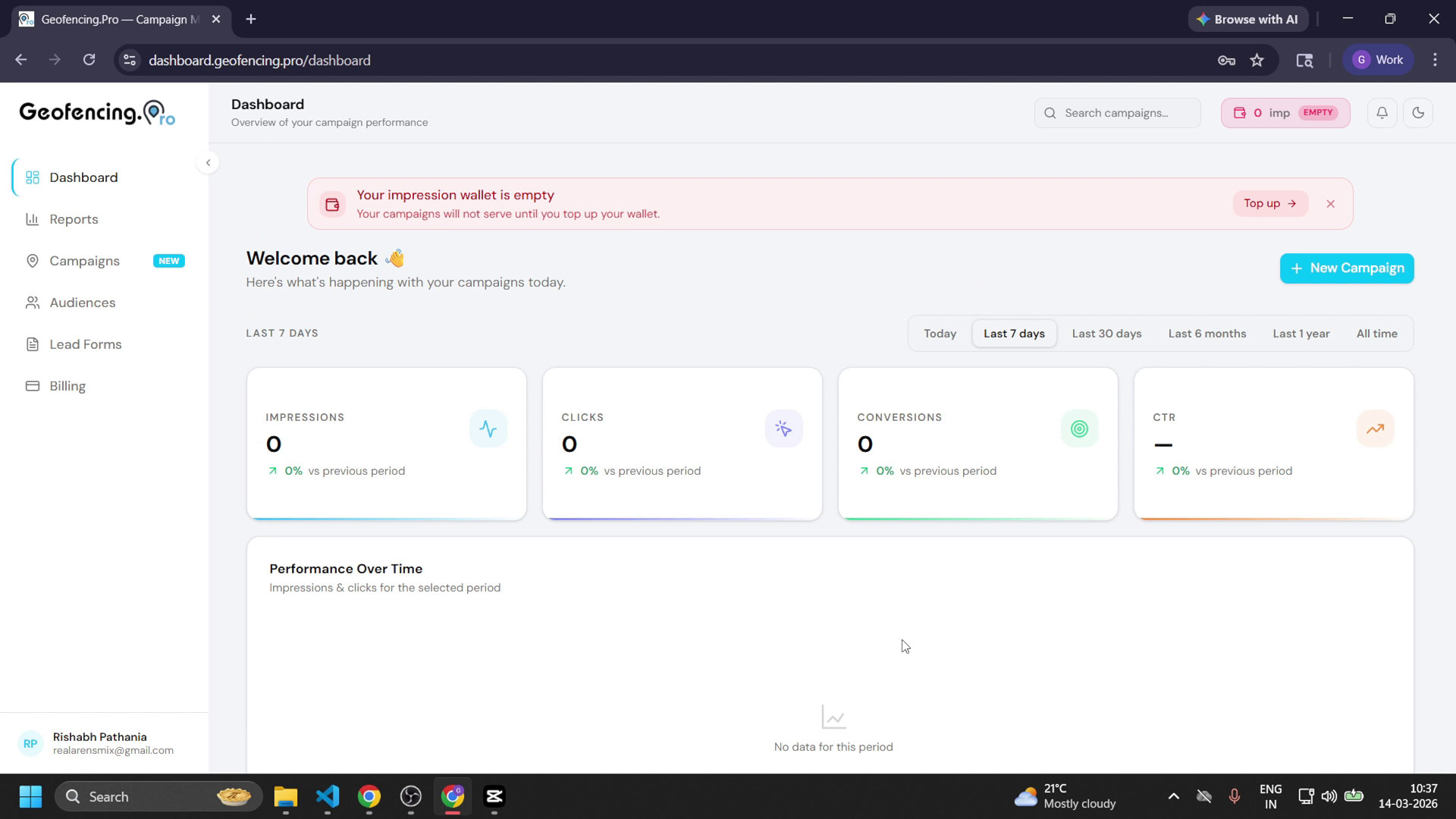
Your password has been reset successfully. You are now signed in to your dashboard.